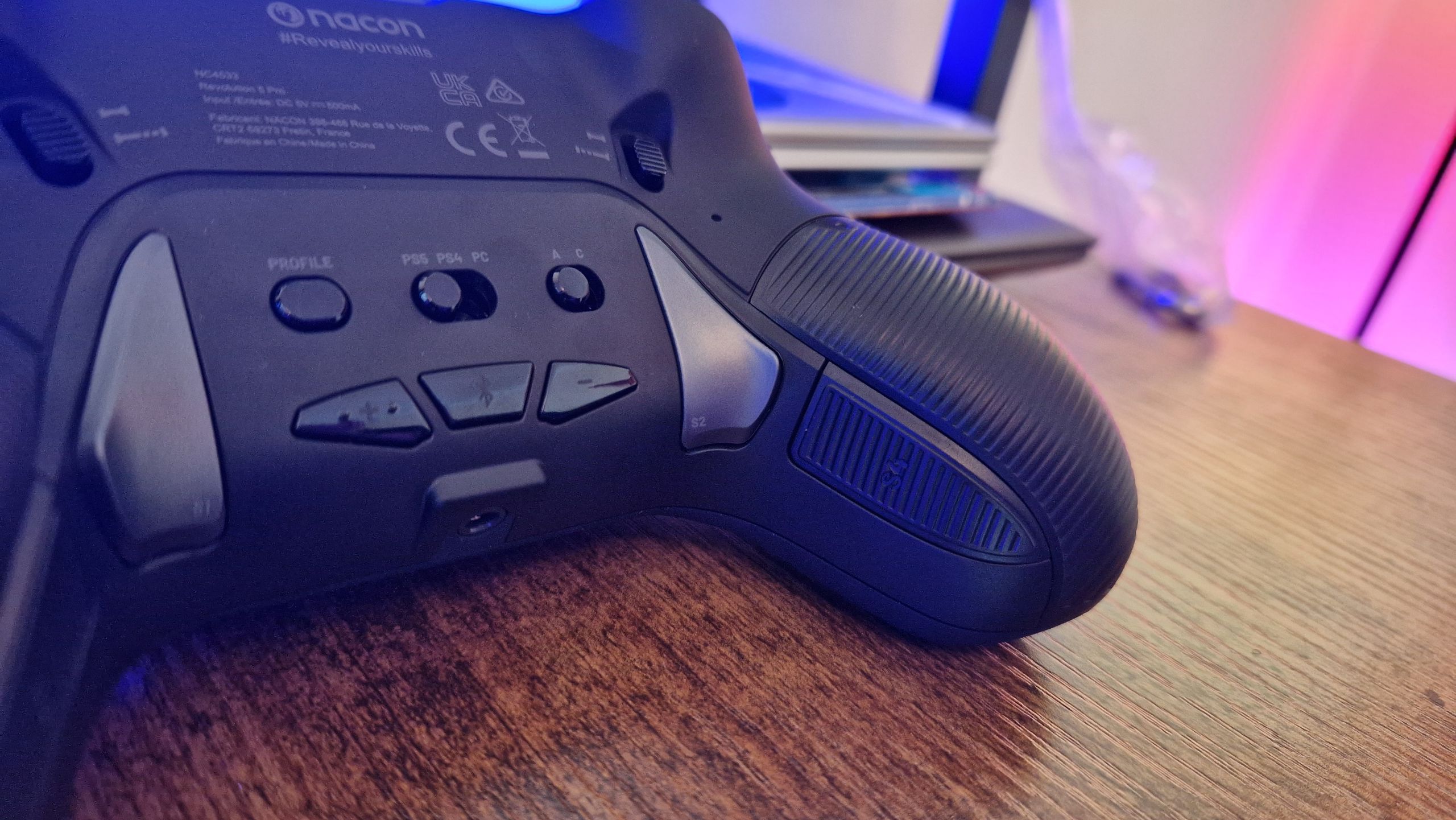
The arrival of new gaming controllers this season presents an opportunity for players to enhance their gaming experience. With options for the Switch 2, PS5, Xbox, and PC, controllers now often include extra buttons or paddles, commonly referred to as back buttons. These features allow for greater customization and more efficient gameplay. This guide outlines how to assign these back buttons effectively based on extensive research and user reviews.
Understanding back button functionality is crucial for optimal setup. Before delving into the specifics, it is advisable to consult the instruction pamphlet included with your controller. This document provides essential guidance tailored to your specific device. The process of configuring back buttons is generally straightforward, making it accessible even for those new to gaming peripherals. Below are two primary methods for setting up back buttons: without software and with companion applications.
Setting Up Without Software
Most modern controllers, including those from brands like GameSir, PowerA, and Razer, allow users to assign back buttons without the need for additional software. Here’s a step-by-step breakdown:
1. **Identify the Function Button**: Each controller has a designated assignment button. For instance, on a GameSir controller, this is often the “M” button, while others may feature a logo button or a small circle.
2. **Enter Mapping Mode**: Press the function button to activate mapping mode. A flashing light indicates this mode is active. Depending on the controller, you may need to press the function button and the back button you wish to assign simultaneously.
3. **Map Your Buttons**: Once in mapping mode, press the button you want to assign to the back button. For example, to map the “A” button to your right back button, you would press the function button followed by the right back button, then the “A” button. This process allows for immediate testing of your button configurations.
4. **Create Multiple Profiles**: Many controllers support multiple profiles, enabling different back button setups for various games. Locate the profile switch—typically on the back of the controller—and repeat the mapping steps to customize further.
Setting Up With Software
For controllers equipped with advanced features, such as the Nacon Revolution X Unlimited, companion software can enhance customization. The following steps guide you through using this software:
1. **Access Official Software**: Locate the official software for your controller, often available via a QR code on the packaging. Ensure you download this from the manufacturer’s official website to avoid scams or malware.
2. **Connect via USB**: Many controllers need to be connected to a PC via USB for configuration. Ensure your controller is set to wired mode if necessary, as most come with a USB to USB-C cable included.
3. **Navigate to Button Assignment**: Open the software and find the button assignment menu. Use the diagram provided to remap the buttons according to your preferences.
Recommended Back Button Assignments
The flexibility of back button assignments allows users to tailor their controls to suit their gaming style. Here are some effective configurations based on extensive user feedback:
– **Two Back Buttons**: Assign the right back button to “A” (or “X” on PlayStation) for easy interaction with menus and quick jumps during gameplay. The left back button can be set to “X” (or “Square”) for seamless reloading while maintaining movement.
– **Four Back Buttons**: In addition to the above, the top right back button can be mapped to “R3” for miscellaneous functions across games. The top left back button could be set to a frequently used function, such as pulling out a tool in specific games, allowing for quick access without disrupting movement.
Players are encouraged to experiment with different configurations to discover what works best for their preferred gaming titles. The primary goal is to minimize the need for thumb movement off the analog sticks, enhancing responsiveness and control.
In conclusion, setting up back buttons on new pro controllers can significantly improve gameplay efficiency. Whether opting for a simple configuration or leveraging advanced software features, taking the time to customize controls can lead to a more enjoyable gaming experience. For those still in search of the ideal pro controller, comprehensive reviews on the best available models for PS5, Xbox Series X, and Nintendo Switch 2 are readily accessible.